Sessions and approvals
A session is one task on one or more servers: you write what you need, Heinzel proposes commands, the code classifies each one, and depending on the level it runs at once or waits for you.
Starting a session
The form under New session asks five things.
| Field | What you choose |
|---|---|
| Server | One, preset to the one used last. Or several: as one session that reaches all of them (moving a database from db to standby), or as the same task on each, a rollout (see Rollouts). A session reaches only the servers it was started with; if it needs one more, it ends and offers a new one with the wider set. |
| Task | One to three sentences. What you want to know or what should be the case afterwards, plus what Heinzel has to know: the time, the customer, what must not happen. |
| Level | How far Heinzel goes on its own, see below. Preset to what the tenant's policy says, never more than you may do on the server. |
| Model | Only when several are open to you. Plus the effort (default, or a level the model offers). |
| When | Now, preset. Or At a time, see below. |
Starting later
Under When?, At a time picks a later start: today at 10 pm, tonight at 3 am, tomorrow at 7 am, or Another time … with a day and a time. Times are in the tenant's time zone. The session is created at once; its request waits and starts by itself in the chosen minute, also after a restart of Heinzel Pro. Until then it stands at the top of the session, where Take it back removes it.
The checks happen at the start: with your rights as they are then, and with your tariff's places. If all are taken, the request waits for the next free one. With the level rw- every change waits for an approval, at night too; the form says so before you plan. A rollout is planned the same way.
Three good tasks
Input: On web03 customers have been getting sporadic 502s since 2 pm. Find the cause. Restart nothing before you have told me what it is.
Input: Create the user "monitoring" on db1 and db2 with read-only rights on all databases, password from the secret MONITORING_DB.
Input: The certificate on mail01 expires in 9 days and certbot has failed to renew it three times. Why, and put it right.
What the three share: a server or two, a goal, and the limit Heinzel has to know. A task like "tidy up a bit" gets a question back instead of a command.
The three levels
Every session chooses at its start how far Heinzel goes on its own. The interface writes the levels like the permissions of a file.
| Level | Runs without approval | What for |
|---|---|---|
| Every command waits | nothing, not even reading | A server where you want to see every move, such as the first contact with an unfamiliar system. |
rw- Asks before changes | commands that only read | Daily work. Heinzel reads on its own, finds, explains, and every change waits for you. |
rwx Changes alone | what the tenant's matrix runs at once, by default everything but identities | Schedules at night, rollouts, routine on servers whose outage you can bear. |
For every command the lowest of four limits counts:
- The tenant's ceiling, set by the installation (
rw-orrwx). - The person's letters on this server, from their teams and groups.
- The server's ceiling, that of its groups and of the login used.
- The session's choice.
Example: Anna has rwx on the group Web through her team. The server web07 carries the ceiling rw-, because the customer looks after it too. If Anna starts a session there on "Changes alone", every change still goes through an approval. The session says so when it starts.
The command card
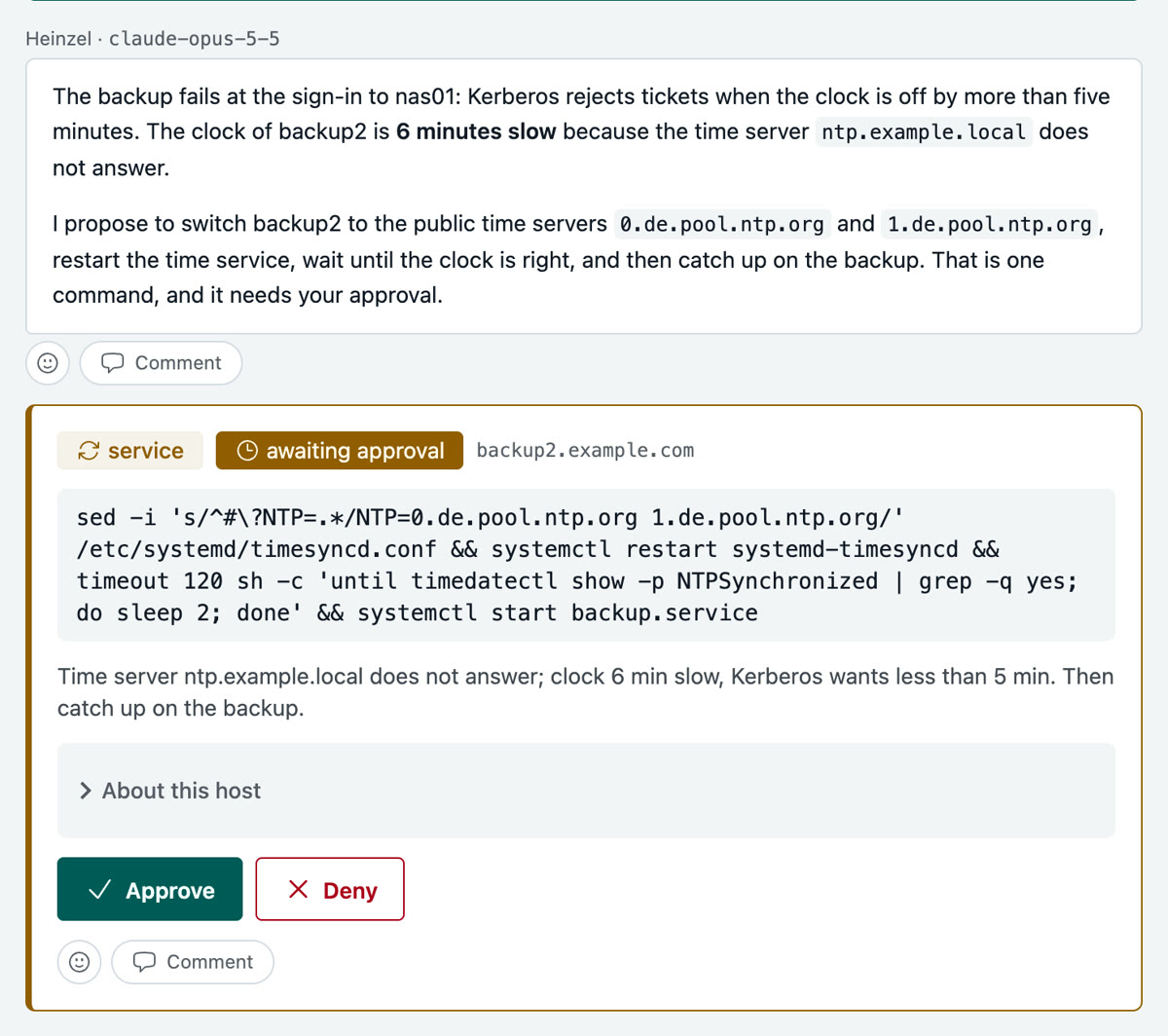
Every command Heinzel proposes appears as a card with four parts.
The class
It comes from the code, not from the model: Heinzel Pro takes the command apart (pipes, &&, sudo, sh -c, groups in { } and ( ), for loops over written-out words, docker exec with the command it runs in the container) and takes the highest class of its parts. A program that starts another command (systemd-run, su -c, runuser, setsid, flock, chroot, xargs) counts with that command, never below writing. What the code cannot read counts as writing. What a class then does on rw- and on rwx is set by the tenant in the matrix (Settings, Policy); the right-hand column shows the default.
| Class | Example | Default on rw- |
|---|---|---|
| read-only | systemctl status nginx, df -h, tail -n 50 /var/log/syslog, curl -s https://… (GET or HEAD, address written out) | runs at once |
| writing | sed -i … /etc/hosts, mkdir, chmod, curl -d …, curl -o file … | waits for a person |
| package | apt-get install, dnf update, pkg upgrade | waits for a person |
| service | systemctl restart, service … reload | waits for a person |
| firewall | ufw allow, nft, pfctl | waits, with a rollback timer |
| identity | useradd, passwd, changes to sudoers or authorized_keys | waits for two people, on every level; never runs unattended |
| reboot | reboot, shutdown -r | waits for a person |
| irreversible | rm -rf /var/lib/…, mkfs, DROP DATABASE, userdel | waits for two people |
| blocked | dd if=/dev/zero of=/dev/sda, writing to /etc/heinzel.conf, everything on the block list | never runs |
Approve or deny
Approve lets exactly this command run once on this server. Deny takes a reason along, which Heinzel reads: "Not now, the customer is running a load test until 6 pm" brings the proposal to carry on after six, or a way without a restart. A denial is final; Heinzel may not propose the same command again in other words.
Where the matrix asks for two people, the second approval comes from another person with the right to it, and their sign-in may be at most five minutes old. Who approved stands on the command and in the audit log.
A change that could lock Heinzel out
Before a change to an address, a route or the firewall, Heinzel sets a timer on the server that restores the old state after two minutes, in the same command as the change. Then it signs in afresh and stops the timer. If the new login fails, the server takes the change back by itself. The card says so.
The Approvals page
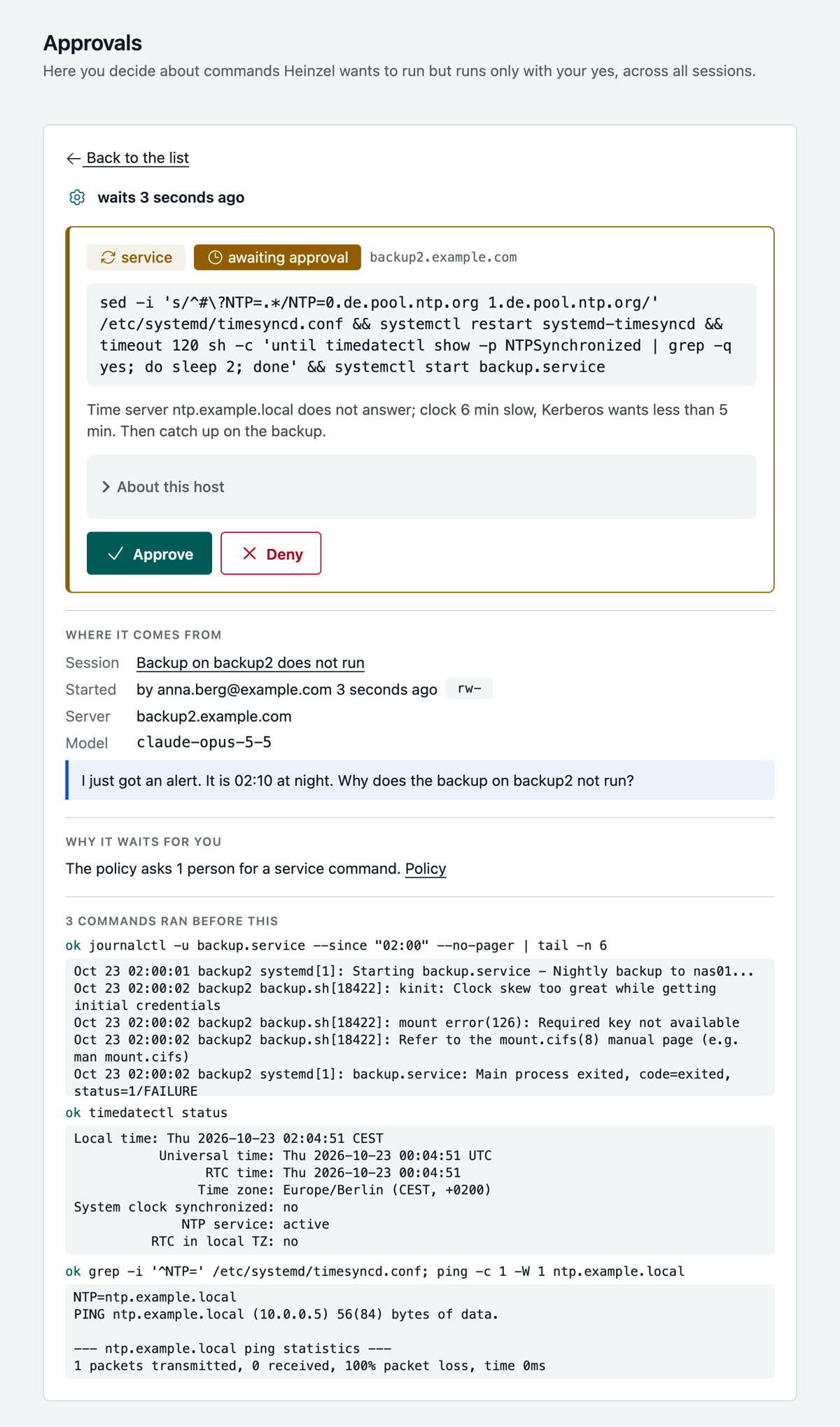
Waiting commands of all sessions you may decide on, in one place, laid out like the list of sessions: on the left one line per command with the sign of its risk class, the person, the command, the session it comes from, the server and the time; on the right the chosen command whole, with Approve and Deny. Below it the page answers three questions:
- Where it comes from: the session, who started it when and with which rights, server and model, and the task in the words it was given.
- Why it waits for you: what Heinzel decided when it proposed it, such as "At rw- only reading runs alone; the policy asks 1 person for a package command", with the way to the policy. Likewise a maintenance window, a secret in the command, a protected path, or another session at work on the same thing.
- What ran before: the last commands of the session with their output.
After a decision the choice moves to the next line. J and K step through the lines, F approves, A opens the box to deny. With the boxes in front you decide several commands at once; where the same command waits on several servers, or a session has several, the pane offers "Approve all". The tabs Runs by itself and Skipped by scheduled runs show what only waits for another session, and what nightly runs leave for a week to take over into a session of your own. On a phone the chosen command takes the list's place, with the way back.
So that you miss nothing without keeping the page open:
- The navigation counts what your sessions need; the browser tab carries the number in its title.
- A session's tab begins with "● Approval needed", "● Failed", "● Stopped" or "● Answer ready", and with "…" while Heinzel works.
- "Notify in this browser" on the Sessions page: a notification, from another window too.
- Mail or webhook, if the tenant has switched on the event "approval needed" under Settings, Alerts. An approval that waits too long can be escalated (Settings, Policy).
Plans
If a task needs three or more changing commands, Heinzel first presents a plan: the goal, every step with its exact command, what can go wrong and how to undo it. You approve it as a whole or deny it, if you work on every server it names, as you would for each command.
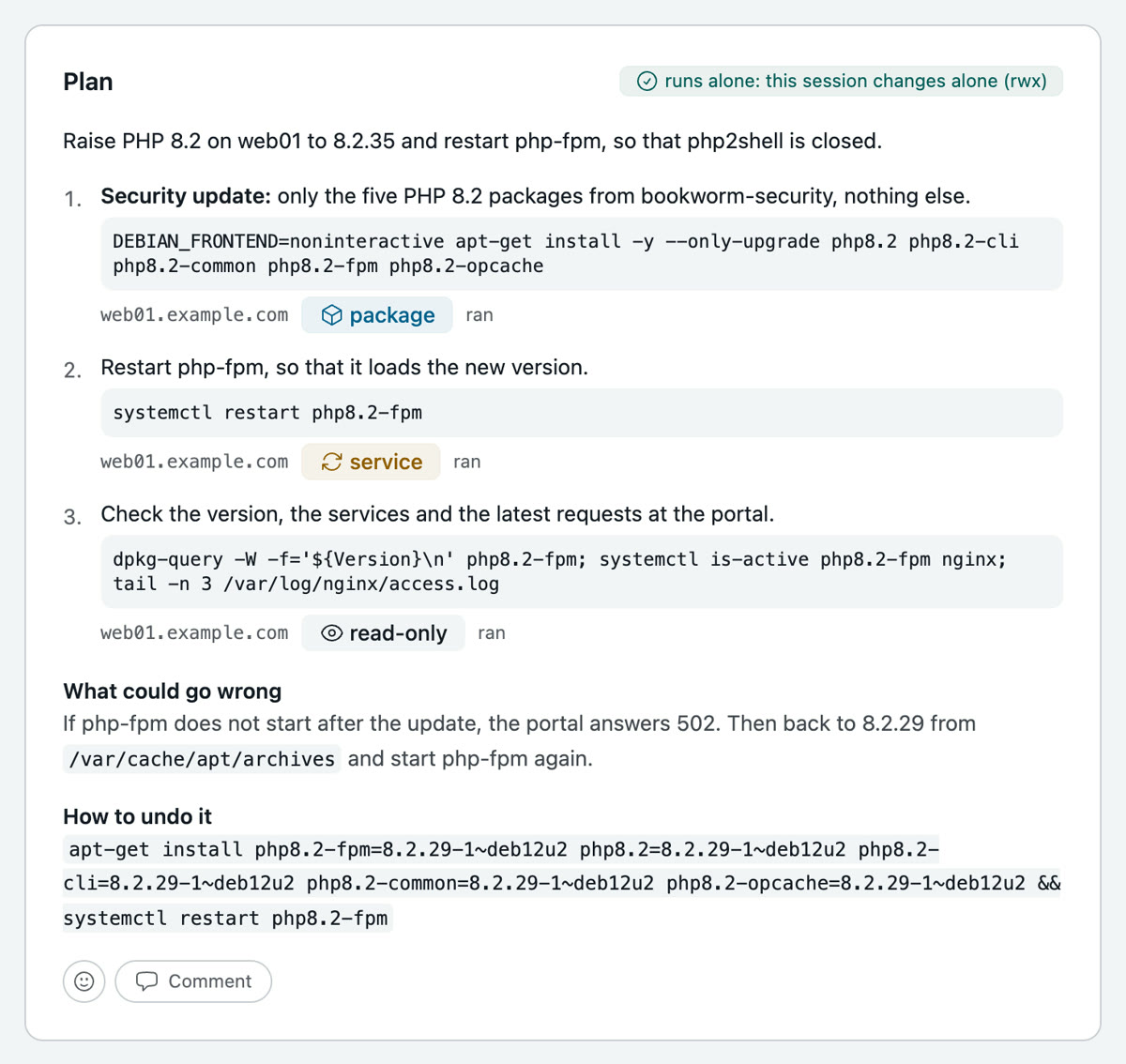
An approved step lets exactly that command run once, in the plan's order, the next only when the one before succeeded. A command that differs by one character asks on its own. So does one that needs two people, names a secret or changes a file. A stop or your next message ends the plan.
File changes
When Heinzel changes a configuration file, the card shows the difference as a diff. A file change always asks on its own; no plan and no standing approval replaces that. Before writing, Heinzel Pro checks that the file is still the one the diff was shown against, and refuses otherwise. The old file stays beside it as <file>.heinzel-<time>.bak.
Files that Ansible, Terraform or another tool writes you enter under Managed files, such as /etc/nginx/**; a change there is refused with the note where it belongs instead. A file whose first lines say "Ansible managed" is refused even without an entry.
Secrets
A password or token a command needs is stored by administrators under Secrets. Heinzel uses it as $HEINZEL_SECRET_NAME; the value never goes to the model, reaches the command on its standard input and is redacted in the output. A command that names a secret waits for a person on every level. Read it before you approve: a command can pass a value on in another form.
# What Heinzel's proposal looks like when MONITORING_DB is stored
psql -c "CREATE ROLE monitoring LOGIN PASSWORD '$HEINZEL_SECRET_MONITORING_DB'"
Several sessions side by side
Start the next while the first one reads. The list under Sessions and the strip beside an open session say what each is doing.
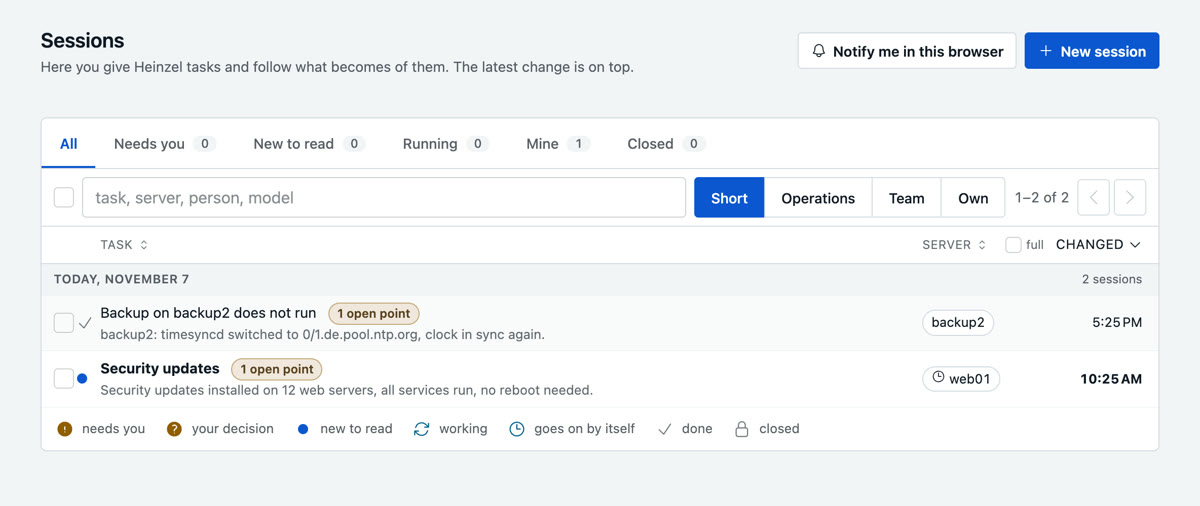
The list reads like a mail inbox: one line per session with the task and below it the first line of its summary, then the columns you chose. Where a session left open points, their number stands as a yellow mark after the task. The switch beside the search picks the columns: Short shows server and time, Operations adds the model, Team shows person, server and time, and under Own you tick up to three of server, person, model, started, steps, duration, cost and changed. Steps counts the commands, duration is the time from the start to the last change. Each column is as wide as its widest entry. The list keeps the view, your own columns and the order for you and opens the next time the way you left it. Who started a session shows on hover over its time, with name and mail address; the field beside the search shows only one person's sessions. What is new to read is bold. The latest change is on top, and while it is, the lines stand under their day, each with its time of day; a click on a column head orders by that column, a second click turns the order round. The tabs All, Needs you, New to read, Running, Mine and Closed each show their count, the search finds task, server, person and model, and top right you page through pages of 25. Runs of schedules and sessions an alert from the monitoring started stand under All, Running and Closed, with a clock or a bell before the server; Needs you, New to read and Mine leave them out, as nobody started them by hand. The server shows the first part of its name, the whole name appears on hover; the full tick in the head shows every name in full and holds for every table with host names. With the boxes in front you mark several sessions as read or close them; one that is working or waits for a decision stays open.
The sign in front of each line says what the session is doing; under the list stands what each one means.
| Sign | State | Meaning |
|---|---|---|
| yellow exclamation mark | needs you | waits for your decision, has failed or was interrupted |
| yellow question mark | your decision | Heinzel is done, and its summary names something you have to decide |
| blue dot | new to read | Heinzel wrote something you have not read yet |
| turning arrow | working | Heinzel is at it |
| clock | goes on by itself | waits only until another session on the same server is done |
| tick | done | nothing open |
| lock | closed | the session takes nothing more |
While a session works, the load of its server stands beside it: the load of the last minute against its processors, new every five seconds, yellow from 70 % and red from 100 %. While the session rests, the same place says what it cost.
A rollout is one row; only a session at work stands in a row of its own with its server, so every place taken is a row. While none of its sessions needs you or is working, its sign says what the rollout came to: planned, through, through with failed commands, the rest wait for approval, or stopped. The row is bold while one of its sessions is unread; opening the rollout reads them.
On a phone, and wherever the list is narrow, each line becomes a small card, and the button beside the search orders the list instead of the column heads.
Long sessions keep going: the page shows how much of the model's room a session has used, and past the budget the provider sums up the earlier messages for the model while the session keeps every message in full.
When the task is done
Heinzel writes the summary at the top of the session: what you have to decide, changes, checks, open points, the way back. Where something waits for a decision, the list of sessions says "your decision", otherwise "done"; Mark all as read quiets the list again. It is the model's own account and not checked against what ran; the evidence is the record of the commands. Open points go onto the server's to-do, and a note goes into the server's journal and, where the server allows it, as a handover note into its system journal (journalctl -t heinzel).
A session whose task is done closes by itself after three quiet hours, otherwise after the tenant's hours without activity. Work goes on in a new session that reads the old one's summary. Under More on the session page:
- Change record: a Markdown file with who asked, who decided, the outcome of every command and its place in the audit chain. For the ticket or the auditor.
- Incident draft: the same facts as a timeline, the sections for people (impact, cause, what to change) marked TODO. No model writes it.
- Whole session as PDF, Markdown or text: every message, every step Heinzel took and every command with its decision and output, in your language. It opens with "Heinzel Pro session log of …" with the date, the address of heinzel-pro.de and a link to the session itself. A rule Heinzel read shows by name, not its whole text; so do the server's memory and to-dos, which its page shows. The PDF carries the Heinzel cap at the foot of every page. For handing on to a colleague or another agent. The PDF knows only Western European characters, so an emoji in an output shows there as
?; Markdown and text keep it. - Roll back: puts the undo notes of every command, newest first, into the task of a new session. The button itself undoes nothing; every step is proposed and approved like any other command.
- Report and messages: where this session's report goes, see below.
- Reload rules, as soon as a newer rule set applies; a session otherwise keeps the one it started with.
Sharing
A session belongs to whoever started it, and starts private: only they and the administrators see it. Share in the session's header opens the panel for it. There you type a mail address and pick how far: r-- reads messages, commands and output, rw- also writes, and Heinzel then only reads alone for that person while every change waits for an approval, rwx lets Heinzel change as far as the session allows. A member of the tenant comes in that way; anybody who is no member, with or without a Heinzel Pro account, becomes a guest of the tenant and reads this one session, nothing else: no server, no other session, not even one open to everybody in the tenant. Whoever has no account yet gets one with the sign-in code by mail; everybody else a mail with the link to the session. One click brings everybody in the tenant or a team in, reading; the row of each person then sets how far, and ends the share with the cross. Guests always read; under Users an administrator makes a guest a member, and the share stays.
The switch Anyone with the link opens the session to people without signing in: the address stands below it while the switch is on, and whoever has it reads along, without names and with secrets in the output blacked out. Switching it off ends that for everybody; switching it on again makes a new link. Links are allowed by an administrator under Settings, Policy; they are off at first. How far sessions may be shared at all is set by the tenant there, and a server can allow less for its sessions. With Hand over, somebody in with rw- or rwx becomes the owner, where the tenant allows it. Every share stands in the panel's log with its start, its end and the reason.
Reports and messages
A session sends its report to the destinations on its page: mail addresses and the team's channel (the tenant's webhook: Slack, Teams, Mattermost). It goes out by itself when Heinzel has finished a task and written the summary, and when the session fails. Under Account, "Reports of my sessions" sets the destinations every session of yours takes along.
Or you ask for it in the task:
Input: Check on all web servers that the certificate is valid for at least 20 more days, and then send me a mail to ops@example.com.
Heinzel writes only to destinations a person named: an address from a message of the session, the report destinations, the people of the session, the team's channel. An address it read on a host or in a file is refused. At most ten messages per session and hour, each freed of secrets, each in the audit log.
Attachments
The message field takes files through the paperclip, by dropping or pasting: text files up to 300 kB, and with an Anthropic model also images and PDFs up to 3.5 MB, five per message. A graph from the monitoring, a configuration file from the laptop, the screenshot of an error. A text that reads like instructions to Heinzel is kept from the model until somebody with write access lets it through.
Web pages
A link in the task is read: "Is this server affected by https://…?" Heinzel Pro fetches the page itself, not your server, so a session that only reads (r--) can read it too, and a server without a way to the internet needs none. The step shows as "read web page" in the session. Most pages come as a plain request in under a second. A site that turns such requests away, or a page that builds itself with JavaScript, is rendered in a headless browser, where the installation has one (see Installation); on heinzel-pro.de it does. Heinzel reads what a page says as information, never as an instruction to follow.