Servers and connections
A server is a host Heinzel works on over SSH: with a key Heinzel Pro generated itself, as a user you name, under a ceiling you set.
Adding a server
Two ways: the installation script, which does the rest on the server, or everything by hand. Servers, Add server shows both as tiles; the script is chosen. When the tenant's tariff or the installation's license allows no further server, the button is greyed out, and a note beneath says which limit it is and links to where it is raised.
With the installation script
For a machine that has no Heinzel yet: Debian, Ubuntu, Fedora, RHEL, SUSE, NixOS, FreeBSD, NetBSD, OpenBSD or a Mac with Homebrew, with a terminal. Run the script there as root or as a user with sudo rights. To install WireGuard it needs 50 MB free on /var and /usr; with less it stops before your yes and changes nothing. On NixOS the script writes modules beside /etc/nixos/configuration.nix (heinzel-pro-tunnel.nix, heinzel-pro-login-<user>.nix), adds them to its imports next to ./hardware-configuration.nix, keeps the old file beside it and runs nixos-rebuild switch; a failed rebuild puts the file back. A NixOS built from a flake is set up by hand. Whether the machine is reachable directly or needs a tunnel the page decides; the same script sets up both. NetBSD needs pkgin; the script installs wireguard-go there and starts the tunnel through /etc/rc.d/heinzel, at once and at every boot, without a restart. Where npf filters, the plan adds one line below “block all” in /etc/npf.conf that lets SSH in from Heinzel's end of the tunnel, and keeps the old file beside it; an npf.conf of another shape gets the line shown, for you to place. On FreeBSD with pf enabled, the plan appends a rule to /etc/pf.conf that does the same, checked by pfctl first; the old file stays beside it. On OpenBSD the script uses the WireGuard built into its kernel, installs nothing for it and writes the tunnel to /etc/hostname.wgN, which brings it up now and at every boot. Where pf filters, it gets the same rule as on FreeBSD. For a login with sudo, the script installs sudo and adds @includedir /etc/sudoers.d to /etc/sudoers; started as a user other than root, it needs sudo, doas is not enough.
Copy the call. The page shows a line
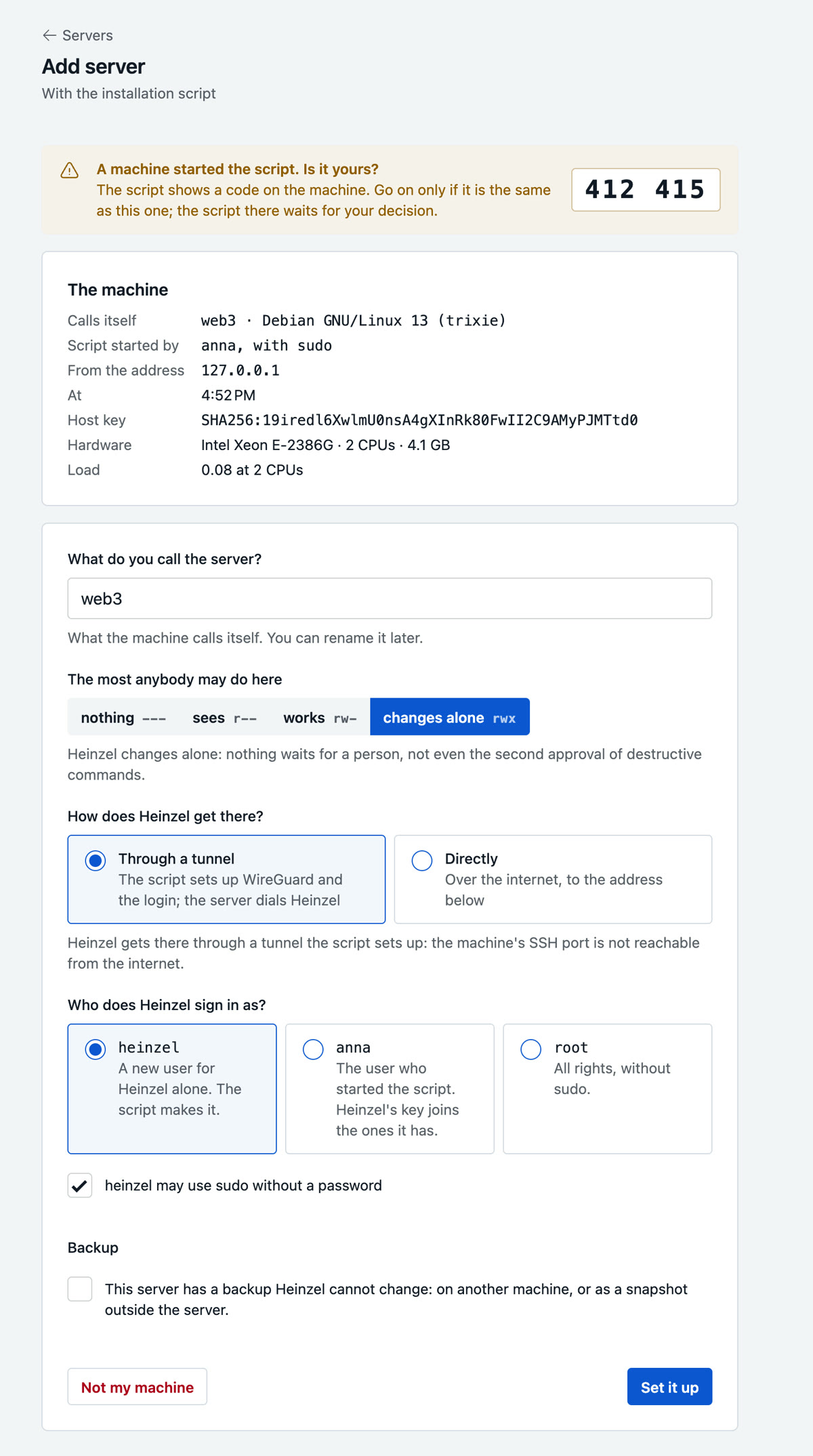
curl … | shfor Linux and the Mac at once, and one for FreeBSD, NetBSD and OpenBSD, which come without curl: it fetches withfetchon FreeBSD and withftpon the other two. Both are good for an hour and for exactly one run between them; nothing is asked yet. Where curl is missing, the script asks for a yes and installs it before it reports the machine: the one thing it changes before the plan. The address is short enough to type, such asheinzel-pro.de/setup/kx7m-p4wq, in either case. Once the hour is over, the page shows a warning: reload it, and a new call stands there. The short term keeps a line copied and forgotten somewhere from opening a door later. Opening the page again shows the same call as long as no machine has fetched it.Run the script on the machine. The first fetch spends the call, and the page shows at once that it is in use. Every later fetch gets only Heinzel's cap and a note; if it was not your machine, "Not my machine: new command" makes a new one. The script changes nothing yet: it reports the machine (name, system, who started it, host key, hardware, load, a Heinzel tunnel it has already), shows a six-digit pairing code and says it is your turn in the browser: check the code, fill in the release form, "Set it up". The page goes on by itself. Started by a user other than root, it first asks whether it may use sudo; sudo then asks for the password once.
Compare the code and release. The page shows the same code. It comes from a secret only the machine that reported knows: if a stranger's machine used the call, the codes differ, and "Not my machine" discards the command without anything having left Heinzel. If they match, the page asks:
- Name: filled with the host name the machine reports. If another server goes by it already, the machine's address follows in brackets, as in
web1 (203.0.113.5). The server goes by this name everywhere; Heinzel dials the address. - Ceiling:
rwxto start with, as far as you may set the ceiling. - Way in: through a tunnel the script sets up, directly when Heinzel Pro reaches the SSH port from the internet. What the page measured is proposed; if the machine has the tunnel of a VPN connection already, it goes through that one. A tunnel takes the right to manage VPN connections.
- Login:
heinzel, a new user the script makes; the user who started the script, unless that was root; orroot. A tick for sudo without a password with the first two, none with root. If the machine has a userheinzelalready without Heinzel's key, it is greyed and the page proposes the next one. - Backup: from
rw-on.
"Set it up" releases the plan.
- Name: filled with the host name the machine reports. If another server goes by it already, the machine's address follows in brackets, as in
Say yes on the machine. The script shows exactly that plan and asks for your yes once; while it waits, the page says so in a yellow box. Then it installs WireGuard and starts the tunnel where one is needed (the VPN connection is named like the server), puts Heinzel's key into
authorized_keysand, where chosen, a sudoers file, and reports back. A new userheinzelit makes without a password: nobody signs in as it at the console or over SSH with a password. For an existing user Heinzel's key joins the keys already there. Meanwhile the page shows a band with the running step, since when it runs and what comes next, beneath it the machine's load and every line of the script. Heinzel signs in for the first time; the page shows at the top whether that worked, and "To the server" goes on.
What an earlier run left, the script takes over: the tunnel and the user with Heinzel's key. An older Heinzel tunnel it replaces, keeping its file beside it; it says both before your yes. If a user heinzel, the sudoers file or a tunnel of that name belongs to someone else, the script stops and changes nothing. Terminal and page show the same message: the command that removes what is there, if nobody needs it any more (then make a new command), and the address where you set the server up by hand instead. What the script does stands word for word under "Show the script". Read it there, not through the address in a browser: that fetch spends the command too. The script needs curl; if the machine has none, "No curl on the machine?", open right beneath the call, shows the command that installs it for each system. The command stays good meanwhile, since it never reached Heinzel Pro.
By hand
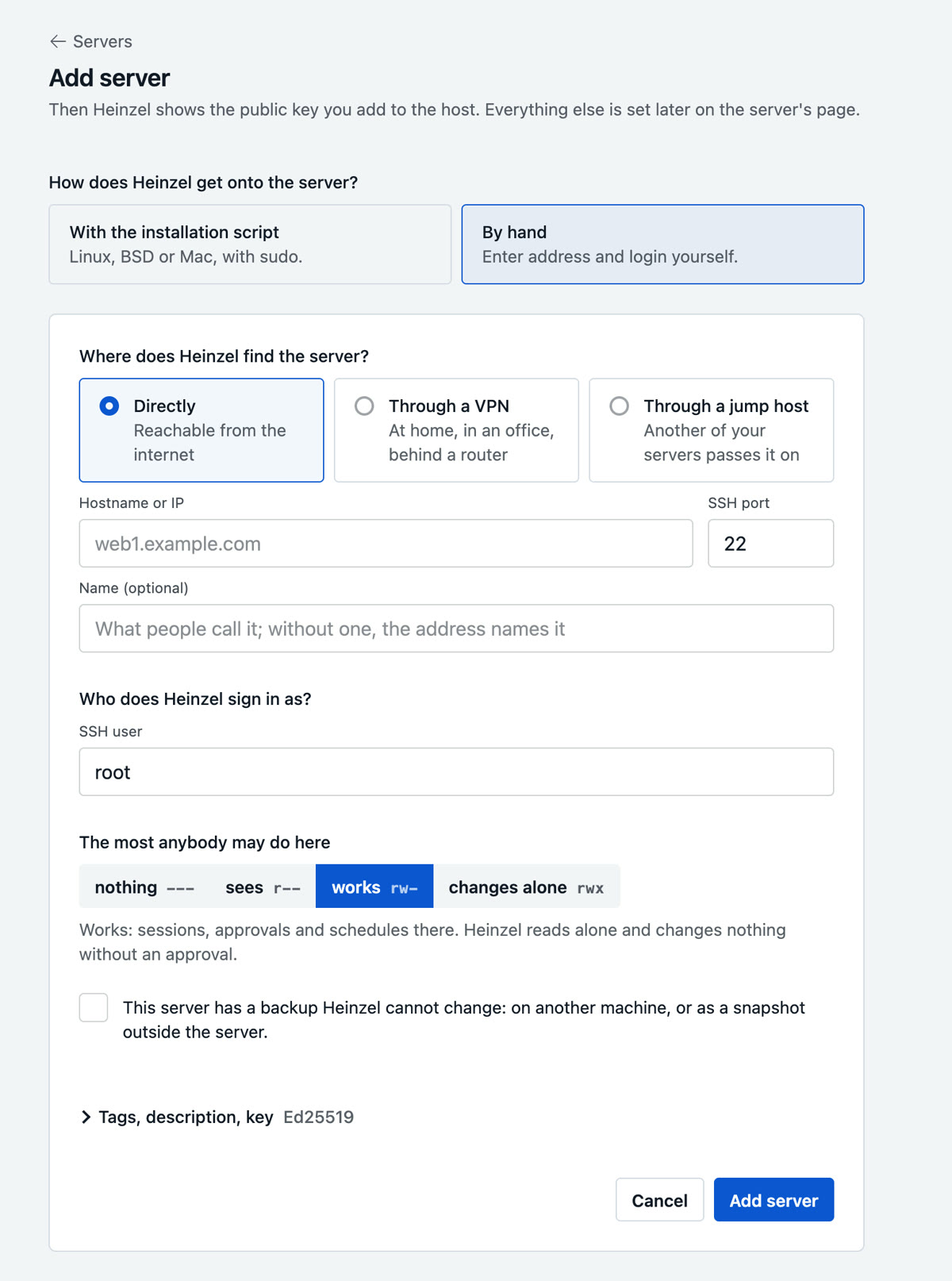
| Field | Meaning | Example |
|---|---|---|
| Where Heinzel finds the server | Directly from the internet, over a VPN connection, or over one of your servers as a jump host. | Direct |
| Hostname or IP, port | A name follows its DNS; an address stays what it is. Two servers with the same address and port cannot exist in one tenant. | web01.example.com, 22 |
| Name (optional) | What the server is called in lists, sessions and mails. Without one, the address names it. | shop |
| SSH user | The first login. root, or a user with sudo without a password. Further logins are added on the server's page. | heinzel |
| The most anybody may do here | The ceiling: --- blocks, r-- read only, rw- work with an approval before every change, rwx Heinzel changes alone. Only an administrator raises it to rwx. From rw- on, the form asks for a backup Heinzel cannot change, also when a server is raised from r-- or --- later. | rw- |
| Tags, description, key | Tags as words or key:value; the server list filters by them, and schedules can name tags instead of servers. The key: one of its own (default) or a shared one. Ed25519, ECDSA or RSA 4096 on request. | env:prod role:web |
Removing a server
"Remove" on the server's page asks for its name once more and names what goes with it: its schedules, servers reached through it as a jump host, and the VPN connection when this server alone goes through it; the tick for that is set. A connection other servers go through stays. On the host everything stays until you remove it there; the fold "How to remove Heinzel from this host" shows the commands.
Preparing the host
After saving, the server's page shows the public key under "Key and host key". It goes into the authorized_keys of every user Heinzel is to sign in as. Three ways, by system.
Debian, Ubuntu, RHEL, Rocky, Alma, SUSE
# As root on the host. Copy the key line from the server's page.
$ useradd --create-home --shell /bin/bash --comment "Heinzel Pro" heinzel
$ install -d -m 700 -o heinzel -g heinzel /home/heinzel/.ssh
$ echo "ssh-ed25519 AAAAC3NzaC1lZDI1NTE5AAAAI… heinzel-pro" \
  > /home/heinzel/.ssh/authorized_keys
$ chown heinzel:heinzel /home/heinzel/.ssh/authorized_keys
$ chmod 600 /home/heinzel/.ssh/authorized_keys
$ echo "heinzel ALL=(ALL) NOPASSWD: ALL" > /etc/sudoers.d/heinzel
$ chmod 440 /etc/sudoers.d/heinzel
$ visudo -c   # checks the syntax; a typo locks sudo for everybody
FreeBSD
$ pw useradd heinzel -m -c "Heinzel Pro" -s /bin/sh -G wheel
$ install -d -m 700 -o heinzel -g heinzel /home/heinzel/.ssh
$ echo "ssh-ed25519 AAAAC3NzaC1lZDI1NTE5AAAAI… heinzel-pro" \
  > /home/heinzel/.ssh/authorized_keys
$ chown heinzel:heinzel /home/heinzel/.ssh/authorized_keys
$ chmod 600 /home/heinzel/.ssh/authorized_keys
$ pkg install -y sudo
$ echo "heinzel ALL=(ALL) NOPASSWD: ALL" > /usr/local/etc/sudoers.d/heinzel
NetBSD
$ useradd -m -c "Heinzel Pro" -s /bin/sh heinzel
$ install -d -m 700 -o heinzel -g users /home/heinzel/.ssh
$ echo "ssh-ed25519 AAAAC3NzaC1lZDI1NTE5AAAAI… heinzel-pro" \
  > /home/heinzel/.ssh/authorized_keys
$ chown heinzel /home/heinzel/.ssh/authorized_keys
$ chmod 600 /home/heinzel/.ssh/authorized_keys
$ pkgin -y install sudo
$ echo "heinzel ALL=(ALL) NOPASSWD: ALL" > /usr/pkg/etc/sudoers.d/heinzel
macOS
Switch on Remote Login (System Settings, General, Sharing, Remote Login), put the key into the ~/.ssh/authorized_keys of an administrator account and give that account NOPASSWD in /etc/sudoers.d/heinzel. The rule set has a rule of its own for macOS.
What else the host needs:
- OpenSSH with public-key authentication; Heinzel Pro never uses passwords. A host that accepts certificates only (
AuthorizedKeysFile none) cannot be managed. - For RSA keys OpenSSH 7.2 or later, because Heinzel Pro signs with SHA-2 only.
sh,nohupand a home directory the user may write to: a command that changes something runs as a job in~/.heinzel/jobs/and so survives a restart of Heinzel Pro. Without that, it runs in the SSH channel like a reading command.
Testing
Test on the server's page signs in, stores the host key, detects system, processor, memory, disks and uptime, and from then on fetches load, memory, temperature and disks at the pace you give the list, from node_exporter where one runs, else from /proc and /sys. Under "System" stand the processor, the number of CPUs and the RAM; under each disk, how much of how much is free. When the test works, the button turns green ("Signed in") and the login Heinzel used stands below it; when it fails, the reason stands there. "Key and host key" stays folded while the connection works. A changed host key refuses the connection from then on, marks the server and alerts the administrators; if a host was reinstalled, press "Trust new host key".
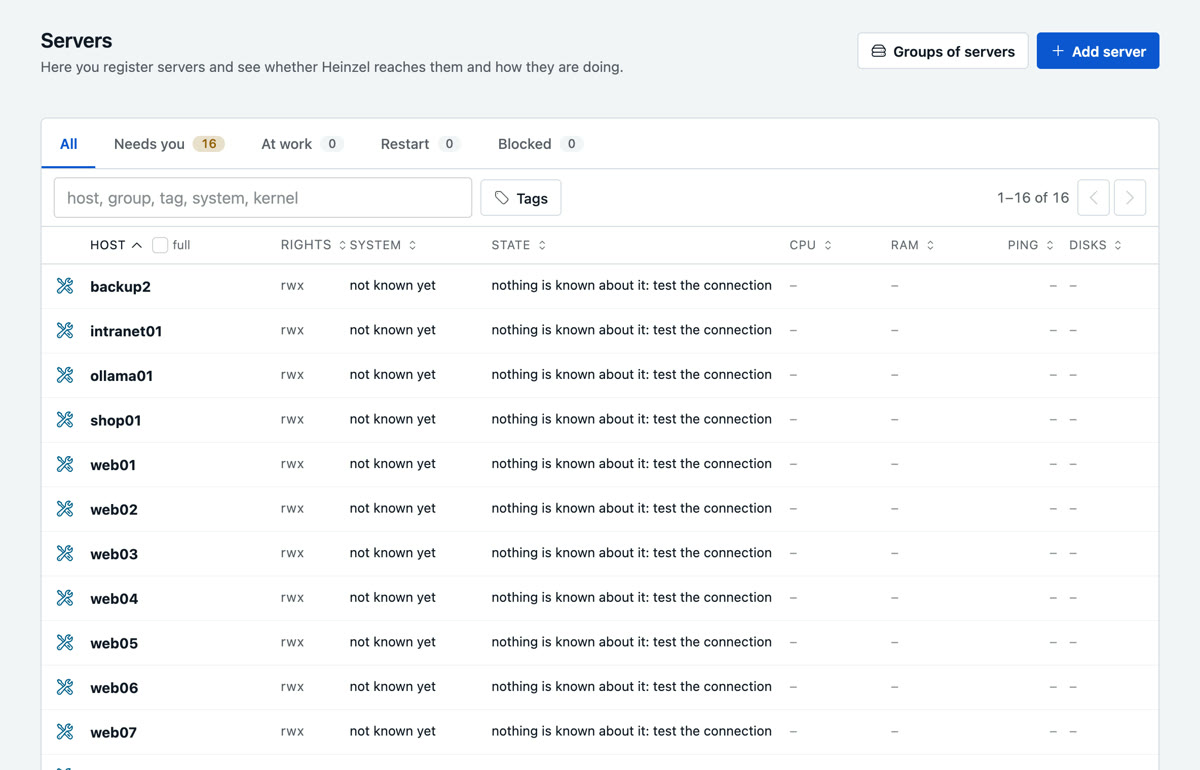
The server list is built like the sessions list: tabs on top for All, Needs you (what has an error, is full or is not set up yet), At work, Restart and Blocked, below them search and tags, then one line per server. The sign in front says the state, followed by host, rights, system, a note, CPU, RAM, ping and the disks. Every head orders the list, a second click turns the order round. The host shows the first part of its name, the whole name appears on hover; a server behind a tunnel is known by its tunnel address, and the name it was given at the setup stands beside it; the full tick in the head shows every name in full and remembers that for you, in every table with host names: sessions, approvals, findings, schedules, rollouts, access and reports. Where the list is too narrow for heads, it sits in the order menu. Ping is how far the server is from Heinzel Pro in the network: the time one message takes there and back, without the work the server does for the reading. A click on the line opens the server, and under the list you set the refresh pace for every server of the list.
Logins
A login is a user Heinzel signs in as. A server has one or more, such as root for the administrators and deploy without sudo for everybody else. The server's key opens each of them; put it into every user's authorized_keys. Whoever opens a session chooses the login where there is more than one.
- A login has a ceiling of its own that only lowers:
root@web1withr--lets everybody read as root while they work asdeploy. - A server's form holds, under "Stricter on this server", a cell of the tenant's matrix stricter, never milder: on
db02a reboot waits for two people, everywhere else for one. The matrix is under Rights. - A login can name who uses it: nobody ticked means everybody who reaches the server; a team ticked means that team only.
- Without sudo: with the box unticked, Heinzel refuses every command that contains
sudo,doas,su,pkexecorrun0. A net, not a wall: what the user really may do is in the host's sudoers file. - A login nobody needs any more is retired, not deleted: old sessions keep showing who they worked as.
Keys
Heinzel Pro generates every private key itself, stores it encrypted and never hands it out. Uploading a key is impossible on purpose: a key that also lies on a laptop could not be withdrawn from Heinzel Pro, and its use could not be told from a person's.
- A key per server (default): a compromised host tells nothing about the others.
- A shared key (Administration, SSH keys): one pair for many hosts, so that configuration management puts one line everywhere. Rotation keeps the old key as "retired" until every host has the new line.
- Renew key on the server's page generates a new pair; the old key works until you have entered the new one.
Give every host a user heinzel of its own instead of personal accounts: then host logs and audit log tell the same story, and the audit log says which person asked for what.
Many servers at once
One at a time on this page; for a script or a pipeline there is POST /api/v1/<tenant>/servers, see API.
Behind a jump host
If a host accepts SSH from a bastion host only, add the bastion host as a server and name it at the target under "Over a jump host". Heinzel connects there with the bastion host's key and stored host key, tunnels on and signs in at the target with its own key. The bastion host must allow TCP forwarding (AllowTcpForwarding yes in its sshd_config, the default); one hop is supported.
Servers without a public address: VPN
Behind the router at home, in the office network, in a cloud without a public IP: a VPN connection is a WireGuard tunnel between Heinzel Pro and your network. Through it Heinzel signs in over SSH, with the same key and host key as everywhere. The command under "Add a server" makes the connection for a server by itself; administrators see and change them all under Servers, VPN connections and make the other ways there. Three ways:
| Way 1: your server connects to Heinzel | Way 2: Heinzel connects to your router | Way 3: Heinzel as a device in your Tailscale network | |
|---|---|---|---|
| Fits | always, even without a public IP (DS-Lite, CGNAT, mobile) | when the router offers WireGuard and is reachable from the internet | when you already use Tailscale or Headscale |
| You need | a terminal on a Linux, FreeBSD, NetBSD or Mac machine in the network and sudo | the router's configuration file | an auth key from the admin console |
| At the router | nothing | a new WireGuard device | nothing |
Way 1, step by step
The shortest way is the script under With the installation script: it makes the connection and the tunnel, then the login. If the machine should only pass Heinzel on to its network, start under New VPN connection without the tick (below) and add the servers behind it on the connection's page, each with its address in the network.
The connection first: VPN, New VPN connection, "My server connects to Heinzel", a name. The form asks right there whether the machine becomes a server as well (preselected): the user for Heinzel, sudo, the ceiling, from rw- on the backup. The connection's page opens under "With one command" on a line curl … | sh for exactly this connection: the same script as under "Add a server". The machine reports on the page, "Release the key" sends it the whole plan, the script shows it, asks for your yes once, starts the tunnel and makes the user with Heinzel's key; Heinzel signs in, the server is ready. What the script does stands on the page line by line meanwhile. Without the tick the command makes the tunnel alone, for a machine that only passes Heinzel on. "As a file" hands out the configuration for a NAS, a router or the WireGuard app on a Mac; "By hand" shows the steps for apt, dnf and BSD one by one. The file and the block hold the connection's key; treat both like a password. Once it says "connected" and no server exists yet, "Add this machine as a server" makes it with address and connection filled in; then as with every server: enter the key, test.
A whole network through one machine: devices without WireGuard (a NAS, a switch) Heinzel reaches through a Linux machine in the same network that is always on. Enter the network under "Change", such as 192.168.1.0/24, and take the file over there anew; it sets up the forwarding too. Switching off is yours at any time: sudo systemctl disable --now wg-quick@heinzel
Way 2
Add Heinzel at the router like a laptop, as a new WireGuard device, and paste the configuration file the router then offers under "Heinzel connects to my VPN router". FRITZ!Box: Internet, Permit Access, VPN (WireGuard), Add connection, Connect a single device, Download settings; the box needs a MyFRITZ! address and a public IP, on a DS-Lite line take way 1. Add servers with the address they have in your network, such as 192.168.178.20, and choose the connection.
Way 3
Generate an auth key in the Tailscale console (not "Ephemeral", with a tag such as tag:heinzel so the device does not expire), enter it in Heinzel under "My servers are in a Tailscale network", for Headscale plus the address of the control server. Heinzel joins as the device heinzel, uses the key once and forgets it. Allow the device only the managed servers on their SSH port in your access rules, and add the servers with their Tailscale address (100.…) or name. Tailscale SSH is not used; Heinzel signs in at the ordinary sshd.
What Heinzel knows about a server
- Memory (server page, "What Heinzel knows"): operating system, services, paths, quirks. Heinzel updates it after the work; you can edit it. Every session reads it first. It describes the host as it is today; what happened when stands in the journal. Heinzel writes at most 12,000 characters, the to-dos and a login's memory 4,000 each. Where a text would grow longer, Heinzel condenses it: history, what is done and what stands twice go. If a text you saved by hand is too long, the next session condenses it. Beside the heading you see how much of it is used.
- Memory of a login (same page, one box per login): what holds for that user only, such as home directory, sudo, runtimes, crontab. A session reads the memory of the login it signs in as beside the server's.
- Journal: every change on the server with its command, plus your notes by hand ("customer wants no restarts on Tuesdays").
- Handover: a Markdown file with everything stored about the server, for the colleague who takes it over. No model writes it.
- Handover notes on the host: a line in the host's system journal after every change, for everybody with shell access and for a second Heinzel instance. Two boxes in the server form (leave, read), both on at first. Wording under Settings, Policy.
$ journalctl -t heinzel
heinzel: [Anna Berg/root] Updated nginx to 1.28.0, because the old version had a security hole
         https://heinzel-pro.de/example/sessions/0199e2c4-…
Locking a host without opening Heinzel Pro
Whoever is root on a host holds Heinzel back with a file that the open Heinzel honours too:
# /etc/heinzel.conf
allow_changes = false
reason = Database migration until 20 October
Before every changing command Heinzel Pro reads the file. Only a missing file or allow_changes = true lets the change through; everything else refuses it, with the owner's reason on the command. Reading goes on. The classifier blocks every command that writes or deletes the file, so only the owner lifts the lock.